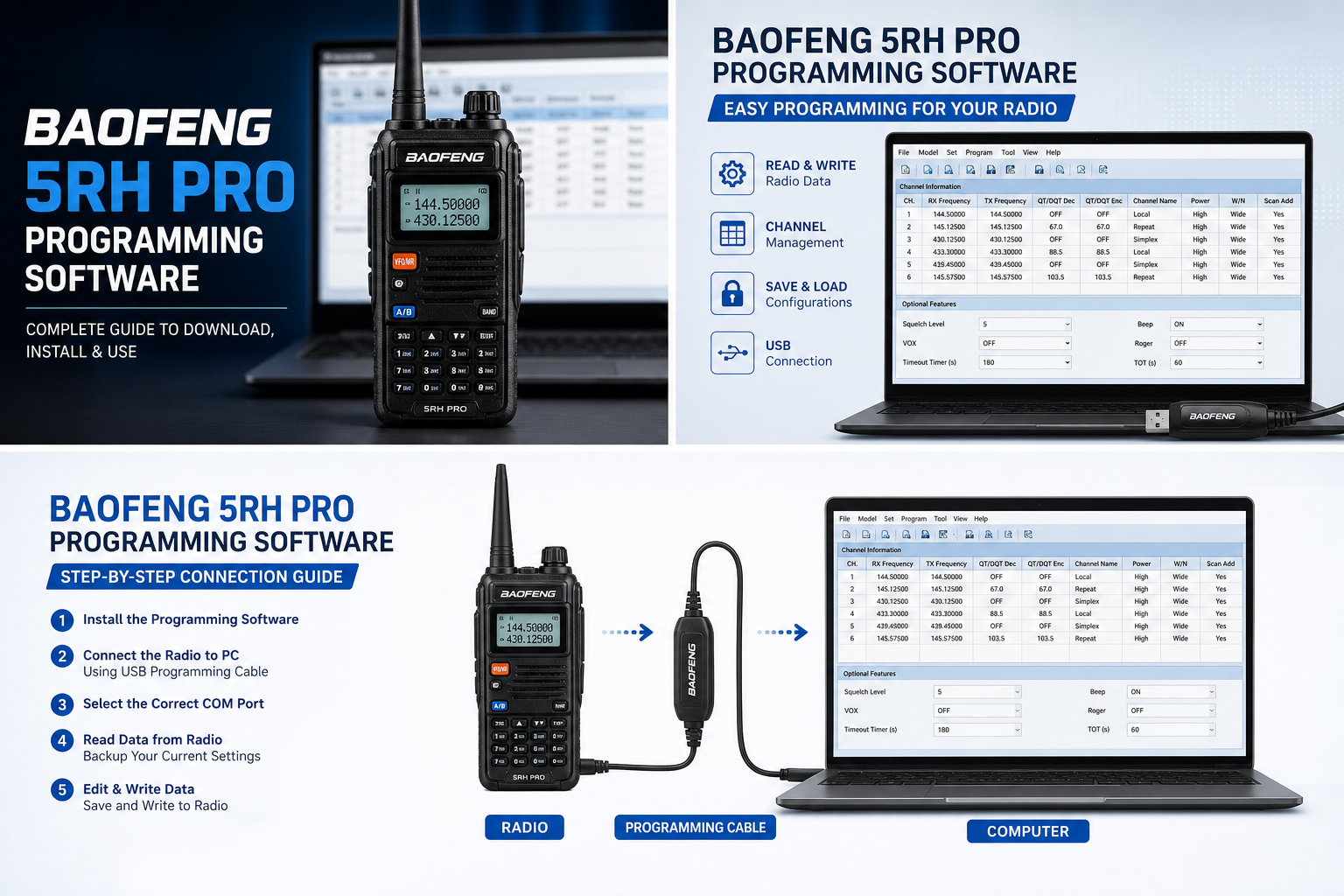
Baofeng 5RH Pro Programming Software: The Complete Guide
If you’ve just bought a Baofeng 5RH Pro and you tried to enter a couple of radio frequencies or change your radio’s settings using only the keypad and menu system on the radio itself, I imagine it was frustrating to do. It’s a slow process to enter frequencies one digit at a time to set up your memory channels and even more tedious to remember what channel your local repeater is on.
The solution is programming software. You can use a USB programmer to program your radio from your computer much faster and with less effort. However, there are a number of common pitfalls when finding programming software for the Baofeng 5RH Pro, installing it, and knowing what you’re allowed to program on your radio.
I’m going to help you sort through all of the details of programming your 5RH Pro. I’ve used a number of programming applications and have the Baofeng 5RH Pro itself. This guide should get you up and running programming your radio as quickly as possible whether it’s your first handheld transceiver or if you’re an experienced amateur radio operator looking to expand your gear.
What Is the Baofeng 5RH Pro?
First off, let’s talk about the 5RH Pro itself. The Baofeng 5RH Pro is a dual band handheld transceiver (HT) that operates in the VHF (136-174 MHz) and UHF (400-520 MHz) frequency ranges. The 5RH Pro is part of the long line of Baofeng HTs that started with the UV-5R. The 5RH Pro generally boasts slightly higher power than previous Baofeng models, dual band receive, a larger frequency range, larger display, USB-C charging, built in flashlight, and emergency alarm.
The 5RH Pro is an extremely affordable, multi-purpose HT that targets amateur radio, emergency preparedness, and outdoor adventure enthusiasts. However, the factory settings only offer the bare minimum of functionality out of the box. You’ll need to program the Baofeng 5RH Pro in order to use it to its full potential.
You can technically program the 5RH Pro from the radio itself, but it’s a painstaking process that’s made much easier by using a programming application on your computer.
Why You Should Use Programming Software Rather Than the Keypad
When you buy a Baofeng radio, you don’t get many features out of the box. However, the manual makes it clear that the radio is programmable and you can use a computer to program your radio in order to unlock features and set up your radio just the way you want it.
The 5RH Pro’s menu system lets you enter frequencies and program each channel individually. While this is possible, it’s a slow, error prone process that requires you to memorize which channel contains the frequency you need. Instead, you can use a computer program to greatly speed up the process.
Speed and Accuracy
Programming 50+ channels with the keypad and menu system on the 5RH Pro can take an hour. With a programming application, you can enter all 50+ channels in a spreadsheet like format in only a few minutes.
Additionally, it’s very easy to type in the wrong channel with the keypad. If you do, your radio won’t be programmed the way you want it to be. With a programming application, it’s much more efficient to copy and paste channel frequencies.
Backup and Cloning Your Radio
A programming application lets you write a copy of your radio’s memory to a file on your computer. This is incredibly useful because you can always restore the backup to reprogram your radio if it gets damaged somehow. You can even clone your radio’s settings to another 5RH Pro if you ever need to.
Access Hidden Settings
Some settings on the 5RH Pro aren’t accessible from the menu or are buried several layers deep in the menu. With a programming application, you can access and adjust all of the settings for fine grain control over your radio.
Batch Editing
If you need to change a setting like CTCSS tone for multiple channels at once, it’s much faster to do it in a programming application. With the 5RH Pro’s keypad, you’d have to change each channel’s settings individually.
Programming Software Options for the Baofeng 5RH Pro
There are two main options for programming software when it comes to the Baofeng 5RH Pro: the official Baofeng programming software and the open source CHIRP application.
I’m going to walk through each option’s benefits and drawbacks, and how to use them.
CHIRP (Recommended)
CHIRP is an open source programming application that supports hundreds of radio models including most Baofeng radios. It has a very intuitive spreadsheet interface and it’s incredibly popular with amateur radio operators. You can even download a repeater database and import it directly into CHIRP.
Pros
Totally free with no registration
Runs on Windows, macOS, and Linux
Easy to use and powerful
Active support and frequent updates
You can write directly to the radio as well as save .img files to your computer for backup or cloning
Cons
Occasionally doesn’t recognize the newest radio models right away
Interface looks like a spreadsheet
Some settings may not be found or recognized
The official source for CHIRP is chirp.danplanet.com. I recommend downloading it directly from the source to avoid malware.
Baofeng Programming Software
In addition to CHIRP, Baofeng provides proprietary programming software for many of its radio models. This software is typically only available through a trusted source that you purchased your Baofeng radio from.
Pros
Made specifically for the 5RH Pro so all features are likely accessible
Potentially better compatibility and support
May include firmware upgrade tools
Cons
Only works on Windows
Interface can be ugly and poorly translated
Infrequent updates and possibly no long term support
Sometimes flagged as malware by antivirus companies
Inconsistent installation experience
You’ll need to search for the programming software yourself since it’s not bundled with the radio. I’ve had mixed results with this software. Most Baofeng radios I’ve owned have been programmed successfully with CHIRP, but there are exceptions.
Other Options
There are a few lesser known options for programming the Baofeng 5RH Pro.
The company RT Systems sells commercial programming software for various Baofeng radios including the 5RH Pro. Their software is intuitive and usually well supported, but it’s not free. It costs around $25 – $50 depending on the radio model.
There are also a few mobile apps for Android and iOS that claim to support Baofeng radios. I wouldn’t rely on them for programming your 5RH Pro. The applications are inconsistent and I personally have had mixed results with them.
Software Requirements
Before I dive into the step by step instructions, here’s what you need to get started.
The Baofeng 5RH Pro radio that you want to program
A USB programming cable
A computer that runs Windows 10 or later, or macOS 10.14 or later
Programming software (I’ll be using CHIRP)
USB drivers for your programming cable
Let’s move onto the actual programming.

How to Program Your Baofeng 5RH Pro
These are the steps I follow when programming a Baofeng radio. These instructions apply to the 5RH Pro as well, but you may need to make some adjustments depending on your radio model.
Step 1: Install CHIRP
Download CHIRP from chirp.danplanet.com and install it on your computer.
On macOS, you may have to right-click the application and select “Open” in order to launch it the first time due to security restrictions. Windows should launch the installer automatically when you double click the downloaded file.
Step 2: Install Your Programming Cable’s Drivers
Insert the programming cable into a USB port on your computer. If you’re using Windows, open Device Manager and look for Ports (COM & LPT) to see if your programming cable was recognized. If you see a yellow exclamation mark next to one of the COM ports, you need to install or update your drivers.
Prolific PL2303 or CH340 chips are commonly used in programming cables. You can download drivers for PL2303 from Prolific’s official website. CH340 drivers can be found on the WCH website.
MacOS and Linux generally don’t require any special drivers, but you may have to authorize the application to access serial ports.
Step 3: Connect Your Radio
Turn your Baofeng 5RH Pro radio off and connect the programming cable. Make sure the two pin connector on the end of the programming cable is inserted into the accessory port on the side of the radio. The accessory port is located on the side of the radio behind a rubber flap. Connect the other end of the programming cable to your computer and turn the radio back on.
Step 4: Read Your Radio’s Memory
Launch CHIRP, and click Radio > Download from Radio. Select the COM port your radio was recognized on in step 2. Choose the manufacturer and model of your radio. If the 5RH Pro isn’t listed, try selecting a similar model such as the UV-5R or BF-F8HP. Click OK.
CHIRP will communicate with your radio to download its memory. This process only takes a few seconds. When it’s finished, you’ll be taken to a view similar to this. In CHIRP, each row represents a channel in your radio’s memory.
Step 5: Edit Channels
You’re now free to edit the channels in your radio’s memory. Here is a breakdown of the fields in CHIRP and what they correspond to on your radio.
Location – Channel number
Name – Up to 6 or 7 alphanumeric characters that identify the channel
Frequency – The receive channel frequency in MHz
Duplex – Repeater offset direction (Positive, Negative, or Simplex)
Offset – Offset distance in MHz
Tone Mode – Repeater CTCSS or DCS tones (Tone, TSQL, DTCS, Cross)
rToneFreq – Transmit CTCSS tone frequency
cToneFreq – Receive CTCSS tone frequency
DtcsCode – DCS code if DTCS is selected
Mode – FM or NFM (Narrow FM)
Power – High, Medium, or Low power
You can edit each channel individually or you can type a frequency directly into a channel number and press enter to create a completely new channel.
Programming a repeater is simple. I always recommend using RepeaterBook.com to find the information for your local repeaters. Enter the repeater’s receive frequency, offset and tone information as needed. The receive frequency goes in the Frequency column, the Duplex and Offset fields will be set automatically based on the repeater’s offset direction and distance.
To set the NOAA weather channels, type 162.400, 162.425, 162.450, 162.475, 162.500, 162.525, and 162.550 in the Frequency column for each channel. Set the Mode to FM and leave the Duplex and Offset fields blank since NOAA weather channels are simplex.
You can also choose to set your radio to only transmit at low power for local simplex communication and high power for distant repeaters.
Step 6: Write Your Changes to the Radio
When you’re done making your changes, click the Radio tab > Upload to Radio. CHIRP will begin writing your changes to the radio’s memory. Don’t turn off your radio or disconnect the programming cable while this process is happening. It only takes a few seconds and when it’s complete a dialog box will appear to let you know it was successful.
Step 7: Verify Your Changes
Disconnect the programming cable and turn your radio off then back on. Scroll through the frequency channels to make sure everything was programmed correctly. Test a few channels to make sure you can reach your local repeaters.
If you’d like to learn more about using CHIRP to program your Baofeng 5RH Pro radio, I recommend checking out my detailed video below.
Common Tasks Explained
Programming a Repeater Channel
As mentioned above, I recommend using RepeaterBook.com to research your local repeaters. Every repeater channel has three pieces of information: the receive frequency, the offset direction and distance, and the CTCSS or DCS tone. Here’s an example of programming a repeater channel:
1. Turn your radio off and connect the programming cable to your computer and radio.
2. Open CHIRP, and click Radio > Download from Radio.
3. Select the COM port your radio was detected on and choose Baofeng as the manufacturer and 5RH Pro as the model. Click OK.
4. CHIRP will download your radio’s memory to the application. Make sure no channels are selected.
5. Click channel 1 (or the channel you want to program), and enter the receive frequency, offset, and tone information. Make sure to set Mode to FM.
6. Click Radio > Upload to Radio. CHIRP will write the new channel information to your radio. You can now use this channel to access the repeater.
Programming NOAA Weather Channels
NOAA weather channels broadcast weather information on seven different frequencies spaced 25 kHz apart starting at 162.400 MHz. You can program your radio to receive alerts from any of these channels.
1. Make sure your radio is turned off and the programming cable is connected.
2. Open CHIRP, and click Radio > Download from Radio.
3. Select the COM port your radio was detected on and choose Baofeng as the manufacturer and 5RH Pro as the model. Click OK.
4. CHIRP will download your radio’s memory to the application. Make sure no channels are selected.
5. Click channel 1 (or the channel you want to program), and enter 162.400 in the Frequency column. Set the Mode to FM and leave the Duplex and Offset fields blank.
6. Repeat this for channels 2-7, entering 162.425, 162.450, 162.475, 162.500, 162.525, and 162.550 in the Frequency column for each channel respectively. Set the Mode to FM and leave the Duplex and Offset fields blank for each channel.
7. Click Radio > Upload to Radio. CHIRP will write the new channel information to your radio. You can now receive weather information from the NOAA weather channels.
Setting Power Levels
The Baofeng 5RH Pro has multiple power settings. You can set your radio to only transmit at low power for local simplex communication or set it to transmit at high power for distant repeaters.
1. Make sure your radio is turned off and the programming cable is connected.
2. Open CHIRP, and click Radio > Download from Radio.
3. Select the COM port your radio was detected on and choose Baofeng as the manufacturer and 5RH Pro as the model. Click OK.
4. CHIRP will download your radio’s memory to the application. Make sure no channels are selected.
5. Click channel 1 (or the channel you want to program), and enter 1 for Low Power, 2 for Medium Power, or 3 for High Power in the Power column.
Troubleshooting
When programming your Baofeng 5RH Pro radio, you may encounter the following issues and solutions.
“Radio not found” or other communication errors.
This is by far the most common issue when programming a Baofeng radio. First, make sure your programming cable is fully inserted into both the radio and the computer’s USB port. Next, make sure you’ve selected the correct COM port in CHIRP. Try using a different USB port on your computer, ideally one that’s on the computer’s motherboard rather than a USB hub. If all else fails, try reinstalling the drivers for your programming cable.
CHIRP doesn’t recognize my 5RH Pro.
It’s possible that your version of CHIRP doesn’t recognize the 5RH Pro. I recommend using the daily build of CHIRP if available. Make sure to use a trusted source for the daily build since it may contain malware if downloaded from an unofficial source. If the daily build still doesn’t work, try selecting the UV-5R or BF-F8HP model.
Data is garbled when reading the radio’s memory.
This is also a common issue and occurs when CHIRP fails to read the radio’s memory. Try reading the radio’s memory again. If that doesn’t work, try resetting your radio to factory settings and attempt to read the memory once more.
My programming cable isn’t recognized by my computer.
This generally means your computer doesn’t have the proper drivers for your programming cable. See the Software Requirements section to find the proper drivers for your programming cable.
Legal Considerations
This section is extremely important, so I’m going to be very direct about it.
Your Baofeng 5RH Pro radio can transmit on a wide variety of frequencies. In fact, it can transmit on frequencies used by first responders. It’s illegal to transmit on frequencies that you aren’t licensed to use. Make sure you’re familiar with the FCC regulations regarding amateur radio operation.
To legally operate an amateur radio, you need an FCC amateur radio license. It’s relatively simple to get and it allows you to operate your radio on amateur radio frequencies. Programming your radio to transmit outside of amateur radio frequencies is illegal and can result in steep fines.
I encourage you to use your Baofeng 5RH Pro for amateur radio operation and other radio hobbies as allowed by law.
Tips and Tricks
Remember to always read back your radio’s memory before writing it. This will give you a backup copy of your radio’s memory in case something goes wrong. It’s also a good idea to save your radio’s configuration file to your computer to use as a reference.
Label your channels clearly so you can always tell at a glance which channel contains the frequency you need. It’s also a good idea to test your radio channels after programming them to make sure everything works.
I also recommend keeping your programming software up to date.
Conclusion
I hope this guide helped you to understand how to program the Baofeng 5RH Pro and why it’s important to do so. The programming process is fairly easy once you understand the basics. Programming your radio from your computer is much faster and more convenient than using just the radio’s keypad and menu system.
You should take the time to learn how to use the CHIRP programming application, buy a quality programming cable, learn about your local repeaters, and operate your radio legally and responsibly. It’s worth the initial investment of time and effort to make sure everything is programmed correctly. With a little effort, you’ll have a powerful HT that you can use for years to come.
Frequently Asked Questions
Is CHIRP a reliable programming application?
CHIRP has been around for several years and is used by many amateur radio operators. It’s generally reliable, but you should always download it from the official website to make sure you’re getting a legitimate and up to date version.
Can I damage my radio by programming it incorrectly?
It’s unlikely that you’ll damage your radio by programming it incorrectly. If you do something wrong, it’s more likely that your radio will end up with incorrect settings rather than being damaged.
Do I need a programming cable, or can I use Bluetooth to program my radio?
Unfortunately, there isn’t an official way to Bluetooth program your Baofeng 5RH Pro radio. Programming cables are required for software-based programming.
Will programming my radio void its warranty?
No, programming your radio won’t void its warranty.
Disclaimer: This article is for informational and educational purposes. Always comply with FCC regulations and the terms of your amateur radio license when programming and operating any transmitting device. Frequency allocations and legal requirements vary by country. Verify all information with official regulatory sources before transmitting.